Git
Git is a distributed version control system that helps track changes in code, allowing developers to collaborate
efficiently. It stores snapshots of a project at various points, enabling you to revert to earlier versions if needed.
Git uses branches to let developers work on different features or fixes in isolation before merging them back. It
operates locally but can sync with remote repositories like GitHub for sharing and backup. Its primary commands, such as
add, commit, push, and pull, make managing code history straightforward and reliable.
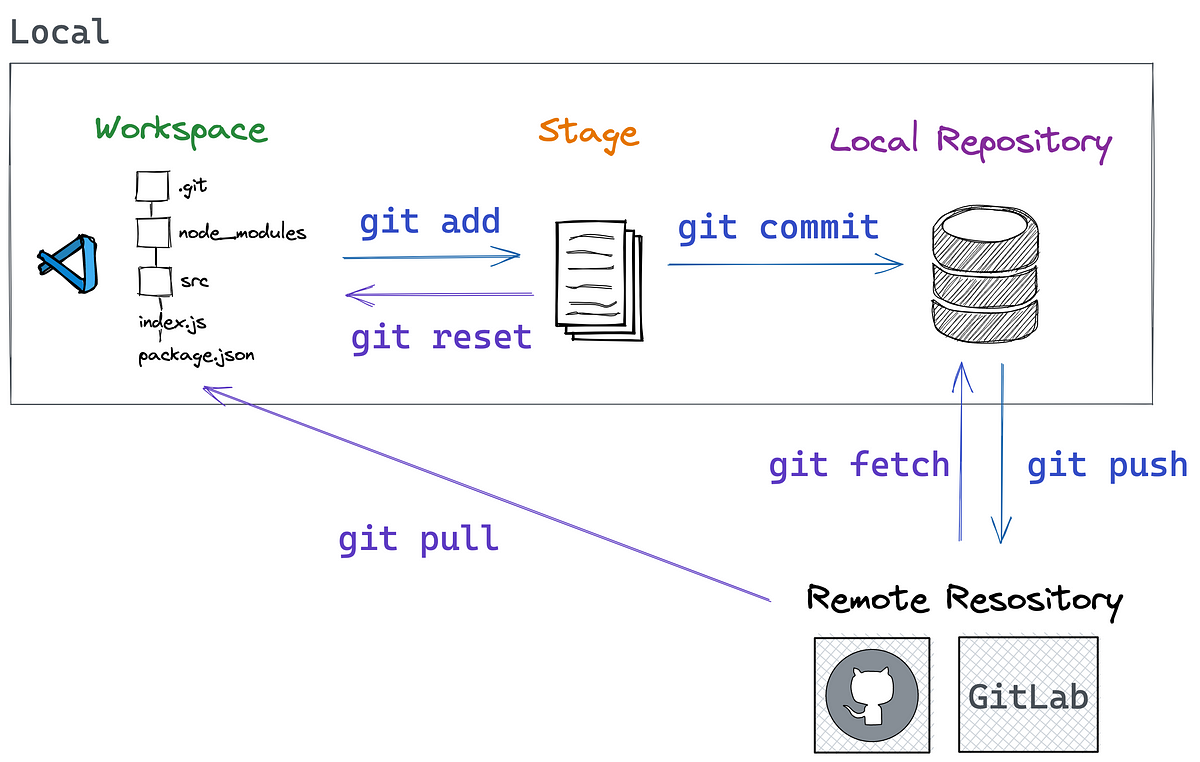
Common Commands
| Command | Explanation | Usage |
|---|---|---|
git init | Initializes a new Git repository. | git init |
git clone <url> | Clones an existing repository from a URL. | git clone https://repo.url |
git add <file> | Adds changes in a file to the staging area. | git add file.txt |
git add . | Adds all changes in the current directory. | git add . |
git commit -m "message" | Commits staged changes with a message. | git commit -m "Initial commit" |
git status | Displays the status of changes in the repository. | git status |
git log | Shows the commit history. | git log |
git branch | Lists branches in the repository. | git branch |
git branch <name> | Creates a new branch. | git branch feature-branch |
git checkout <branch> | Switches to a branch. | git checkout feature-branch |
git checkout -b <branch> | Creates and switches to a new branch. | git checkout -b feature-branch |
git merge <branch> | Merges the specified branch into the current one. | git merge feature-branch |
git pull | Fetches and integrates changes from the remote. | git pull origin main |
git push | Pushes commits to a remote repository. | git push origin main |
git remote -v | Lists the remotes for the repository. | git remote -v |
git fetch | Fetches changes from a remote without merging. | git fetch origin |
git diff | Shows changes not staged or committed. | git diff |
git stash | Temporarily saves changes without committing. | git stash |
git stash pop | Applies and removes the latest stash. | git stash pop |
git reset <file> | Removes a file from the staging area. | git reset file.txt |
git reset --hard | Resets the working directory and index. | git reset --hard |
git rm <file> | Removes a file from the repository. | git rm file.txt |
git show <commit> | Displays information about a commit. | git show abc1234 |
git tag <tagname> | Creates a tag for a specific commit. | git tag v1.0 |
git rebase <branch> | Reapplies commits on top of another base branch. | git rebase main |
Git Staging Area - Index
The staging area in Git is a space where you can prepare and organize changes before committing them to the repository. It allows you to selectively include files or parts of files for the next commit, providing finer control over the commit history.
Key Points About the Staging Area:
- It is also referred to as the index.
- Changes in the working directory must be staged before they can be committed.
- Allows reviewing and modifying what will be included in a commit.
Git Commands for Staging Area
| Command | Description |
|---|---|
git add <file> | Add a specific file to the staging area. |
git add . | Add all changes in the current directory to the staging area. |
git add -p | Interactively add changes (hunks) to the staging area. |
git add <dir> | Add all files in a directory to the staging area. |
git status | Show the status of staged and unstaged changes. |
git diff --staged | Show differences between staged changes and the last commit. |
git reset HEAD . | Clear all files from the staging area. |
Change Lists
Change lists are a concept often used in Git-enabled tools (e.g., IntelliJ IDEA) to group related changes into logical units. While Git itself doesn’t provide this functionality directly, the concept helps developers manage and organize changes that belong together.
Change lists simplify review and commit processes by keeping related changes grouped.
Stashing
Stashing is a Git feature that allows you to temporarily save changes in the working directory (unstaged or partially staged) without committing them. This is useful for switching branches or performing other operations that require a clean working directory.
Stashing is helpful when you need to:
- Keep your working directory clean.
- Safely switch branches without committing incomplete work.
Git Reset Modes
Git offers three reset modes: soft, mixed, and hard. Each mode impacts your repository differently, affecting the working directory, staging area, and commit history.
Quick Reference Table
| Mode | Staging Area | Working Directory | Commit History |
|---|---|---|---|
| Soft | Preserved | Preserved | Reset |
| Mixed | Cleared | Preserved | Reset |
| Hard | Cleared | Cleared | Reset |
Soft Reset
- Command:
git reset --soft <commit> - Effect: Moves the
HEADto the specified commit. Changes remain in the staging area, ready for a new commit. - Use Case: Undo a commit but keep changes staged. Useful when you want to remake commits or split a commit.
Mixed Reset
- Command:
git reset --mixed <commit>orgit reset <commit> - Effect: Moves the
HEADto the specified commit. Changes are unstaged and moved to the working directory. - Use Case: Undo a commit and unstage changes without discarding them. Useful when you added things that don’t belong in git.
Hard Reset
- Command:
git reset --hard <commit> - Effect: Moves the
HEADto the specified commit. Changes in the working directory and staging area are discarded. - Use Case: Completely undo changes and reset the repository to a specific state.
Merge vs Rebase
Key Differences
| Aspect | Git Merge | Git Rebase |
|---|---|---|
| Commit History | Preserves branching structure | Linearizes history |
| Merge Commit | Creates a merge commit | No merge commit |
| History | Full history retained | History rewritten (new commit IDs) |
| Collaboration | Ideal for team collaboration | Risky for shared branches (rewriting) |
| Complexity | Easier to understand and use | Requires careful use (rewrites history) |
| Use Case | Preserving branch context and structure | Simplifying commit history in a branch |
Merge
- Combines branches by creating a merge commit.
- Retains the full history of all commits.
- Preserves branching structure: helpful for understanding how branches diverged and converged.
Rebase
- Moves the commits from one branch on top of another.
- Rewrites history: creates new commit IDs for the rebased commits.
- Results in a linear commit history.
Git Internals
Git is a distributed version control system that tracks changes in source code or other files. Its core functionality is built on a few key data structures: blobs, trees, commit objects, and references (refs).
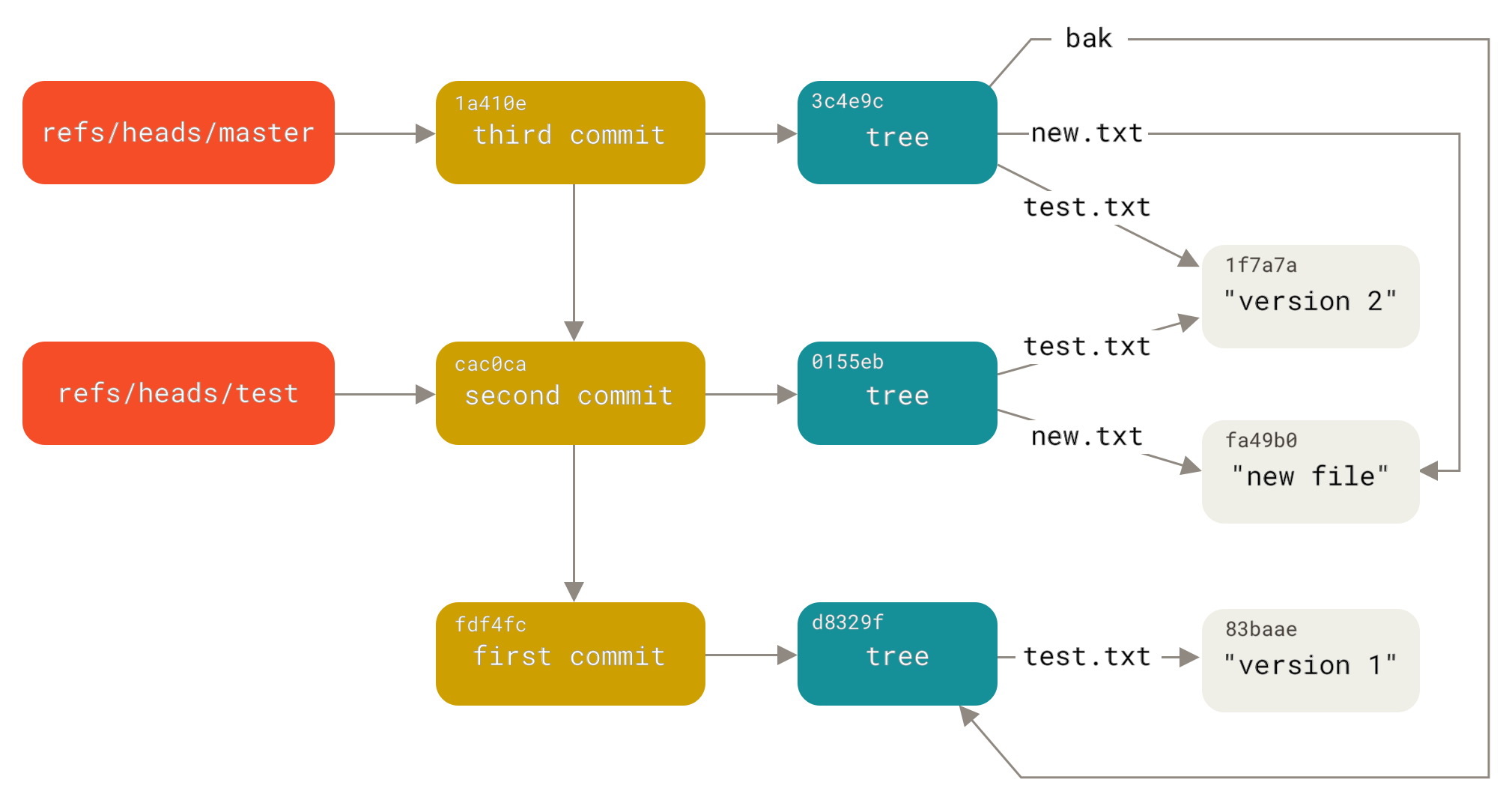
Core Structures
Blobs
A blob (binary large object) is Git’s way of storing file contents. Each unique file content, regardless of its name or location in the repository, is stored as a blob. The blob is identified by a SHA-1 (or SHA-256 in newer versions) hash of its content. Blobs are immutable; if you change a file, a new blob is created.
Trees
A tree in Git represents the hierarchical structure of a directory at a particular point in time. Unlike blobs, which store file contents, a tree organizes the relationships between blobs (files) and other trees (subdirectories). Structure of a Tree
A tree object contains:
- Pointers to blobs (for files) and other tree objects (for subdirectories).
- Metadata for each entry, including:
- File mode (permissions).
- File name or subdirectory name.
- SHA-1 (or SHA-256) hash of the blob or subtree it points to.
Commits
A commit in Git represents a snapshot of the repository at a particular point in time. A commit consists of:
- A pointer to a tree object (representing the directory structure and blobs).
- Metadata (author, committer, message, etc.).
- One or more parent commit(s) (allowing the construction of histories, such as branches or merges).
The commit pointer allows Git to efficiently navigate the entire project state without needing to duplicate file contents.
Refs
Refs are named pointers to commits (e.g., master, main, feature-branch). Instead of directly interacting with commit hashes, you use refs to work with branch names. The HEAD reference points to the current active branch or a detached commit. Tags are another type of ref, typically used to mark specific commits like version releases.
.git Folder structure
The .git directory is the heart of any Git repository. It contains all the metadata, objects, and configurations needed for Git to track and manage your project. Here’s a breakdown of its structure based on the concepts of blobs, trees, commits, and references: Key Directories and Files in .git
objects/
Stores all Git objects: blobs, trees, commits, and tags.
- Organized in subdirectories using the first two characters of the object hash (e.g., objects/ab/1234…).
- Each file here is named by its hash and contains the compressed content of the object.
refs/
Stores pointers to specific commits.
- Subdirectories:
refs/heads/: Contains references for branches (e.g., refs/heads/main).refs/tags/: Contains references for tags.refs/remotes/: Contains references to remote-tracking branches.
- These files store the hash of the commit that the branch or tag points to.
HEAD
A file containing a reference to the currently active branch or commit.
- Example: If you are on the main branch, HEAD will contain ref: refs/heads/main.
- If in a detached HEAD state, it stores the hash of the checked-out commit directly.
index
A binary file that serves as the staging area (also called the “cache”).
- Tracks which files are staged for the next commit, including their paths, permissions, and hashes.
config
The configuration file for the repository.
- Contains settings like remote URLs, user information, and other repository-specific configurations.
logs/
Stores log files for references and HEAD movements.
- Tracks the history of changes to branches and HEAD, which is useful for debugging and recovering lost commits.
info/
Contains auxiliary information about the repository, like the exclude file for ignored files specific to this
repository.
Interview Questions
What is the difference between `git reset`, `git checkout`, and `git revert`?
git reset moves the HEAD and potentially the index and working directory to a specific commit, modifying history. git checkout switches branches or updates files in the working directory without changing history. git revert creates a new commit that undoes the changes of a previous commit without altering history.
How does Git handle merge conflicts, and how can you resolve them?
Git marks the conflicted areas in affected files and halts the merge. You can resolve conflicts manually by editing the files, using git mergetool, or an IDE, then marking them resolved with git add.
Explain the difference between `git merge` and `git rebase`.
- git merge combines two branches into one, creating a merge commit.
- git rebase moves or replays commits from one branch onto another, creating a linear history.
What is the purpose of the `git reflog`, and when would you use it?
git reflog logs references to changes in HEAD, allowing you to recover lost commits or inspect the history of branch movements.
How would you undo the last commit without losing its changes?
Use git reset —soft HEAD~1 to move the HEAD back one commit while keeping changes staged.
How does Git's `index` (staging area) work, and why is it important?
The index is a middle layer between the working directory and the repository. It allows you to prepare commits by selectively staging changes.
What are Git submodules, and how do you manage them?
Git submodules allow a repository to include other repositories.
Use git submodule add
Explain the difference between a `detached HEAD` and a `HEAD` on a branch.
A detached HEAD points to a specific commit directly, not a branch. HEAD on a branch points to the latest commit of the branch.
How can you squash multiple commits into one?
Use interactive rebase with git rebase -i
What does the `git cherry-pick` command do?
It applies changes from a specific commit onto the current branch, creating a new commit with those changes.
How does Git's garbage collection work, and when is it triggered?
Git uses garbage collection to clean up unreachable objects. It runs via git gc or automatically during certain operations when thresholds are met.
What happens when you force-push to a shared branch, and how can you mitigate issues?
Force-pushing rewrites history and may overwrite others’ work. Use it sparingly and communicate with the team or use git push —force-with-lease.
What is the difference between `origin/master` and `master` in Git?
origin/master refers to the master branch on the remote repository. master is the local branch.
How does the `git bisect` command work, and when would you use it?
git bisect performs a binary search through commits to identify the introduction of a bug.
What is the difference between shallow cloning and full cloning?
Shallow cloning (git clone —depth) limits the history fetched, reducing download size. Full cloning retrieves the complete history.
Explain Git's three-way merge algorithm.
The three-way merge combines changes from two branches using a common ancestor to resolve conflicts.
What are orphan branches, and how are they created?
Orphan branches are disconnected from other branches.
Use git checkout —orphan
How can you track uncommitted changes across branches?
Use git stash to save uncommitted changes and apply them to other branches.
What is the purpose of `git filter-branch`, and what are the risks?
git filter-branch rewrites history, often for rewriting commit messages or removing sensitive data. It risks data loss if improperly used.
How can you remove a file from Git's history while keeping it in the working directory?
Use git filter-repo or git rm —cached combined with .gitignore. For older history, use tools like BFG Repo-Cleaner.